
Slaughter
This post is also available on:

- Open
 capture animal >
  Further (…) >
  Slaughter
- Click New or select the recipient to edit
- specify whether the output weight should be added automatically with a factor (1.77)
- for the price, the options are available
- None | from file or manually
- kg live weight | Price = (slaughter weight * factor) * default price
- kg slaughter weight | Price = carcass weight * target price
- per animal | Fixed price
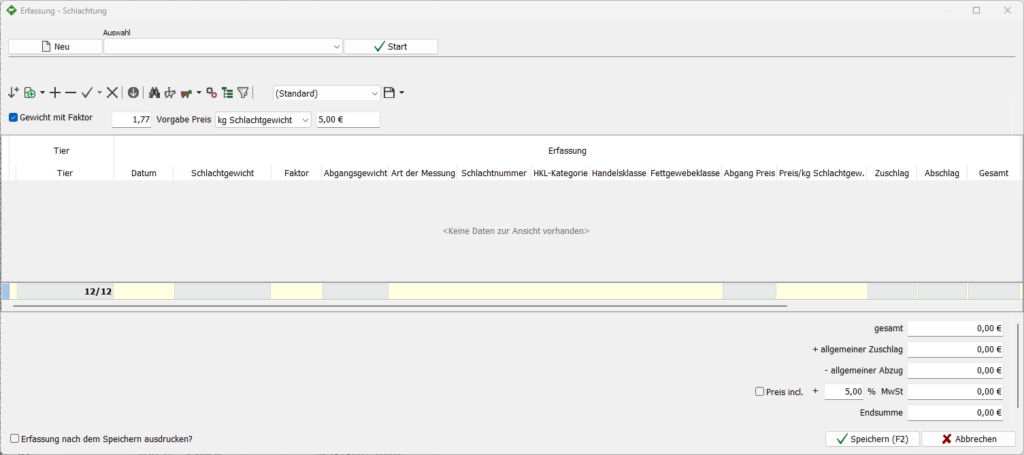
- enter or select recipients, continue with

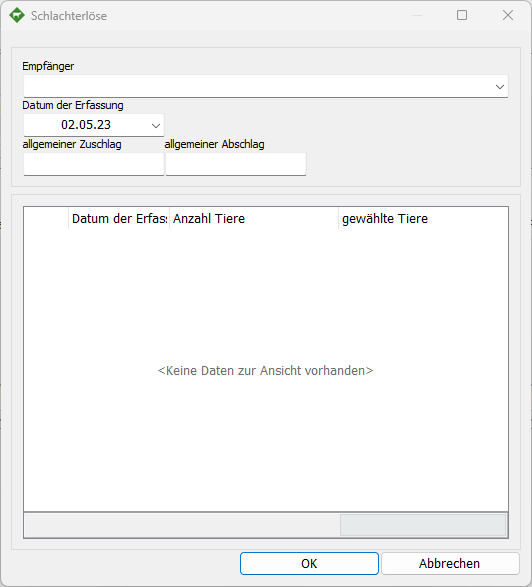
- Enter or select the date, continue with

- If necessary, enter surcharges or discounts, continue with
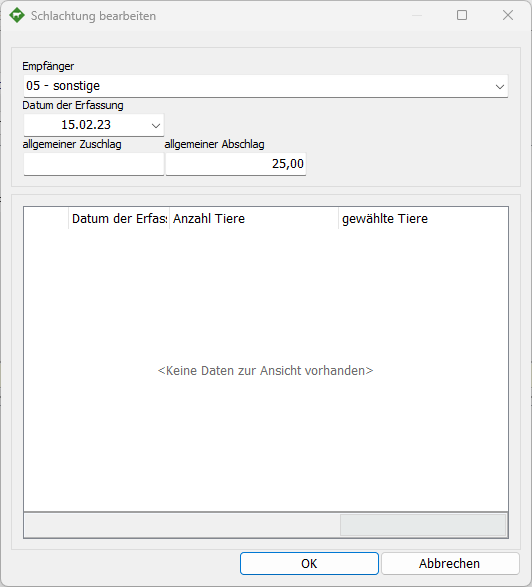
- Zum Beenden
 OK klicken
- If animals have been recorded with a delivery note, they are shown here
- Now enter the further data with the following steps or take it from a CSV file
from CSV file
- Click on
 Get animals from list >
  Read file
- wähle die einzulesende CSV-Datei aus, klicke dazu auf

- Mandatory fields are:
- Animal identifcation
- Date
- Slaughter weight kg
- all other fields are optional
- Mandatory fields are:

- The data is displayed in the preview (truncated)
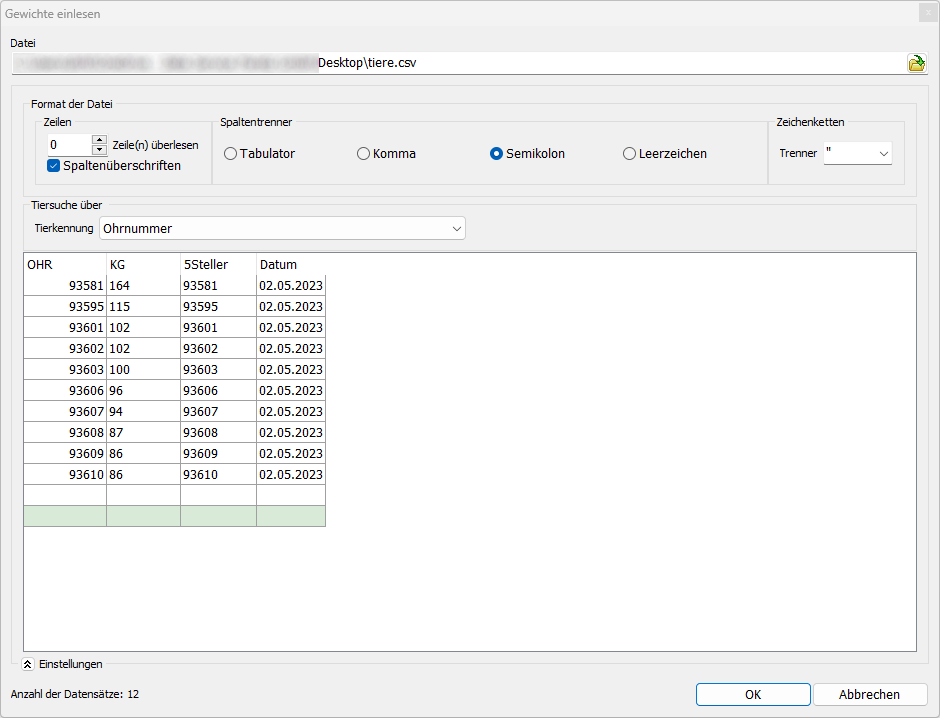
- Assign them to the columns, the order of the assignment does not matter

- this assignment is stored for another CSV import
- by clicking on OK the data will be transferred
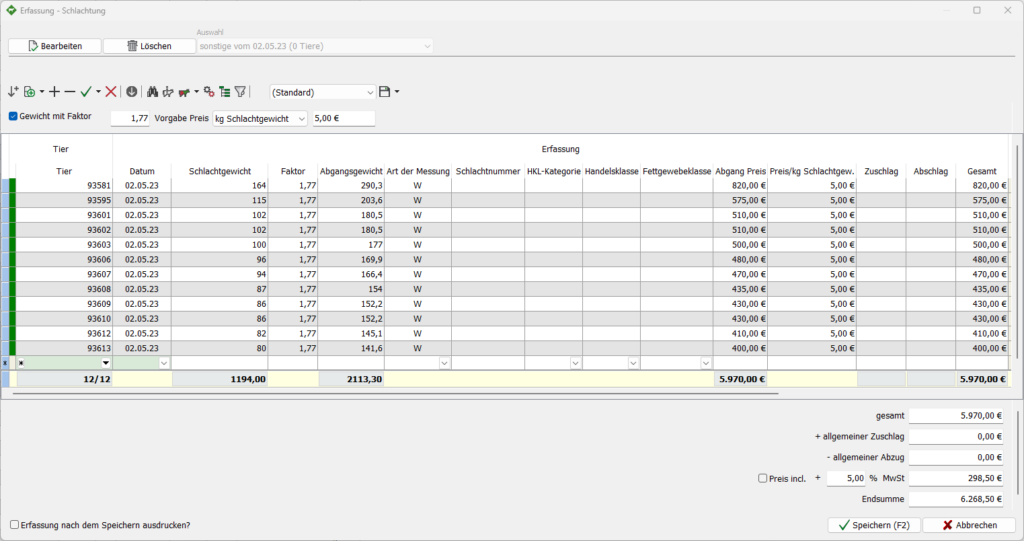
- Adjust VAT
- To stop the capture click Save

manual entry
- Tiernummer eingeben, weiter mit ,
- the current date is displayed

- Determine the emitting weight by entering the slaughter weight and the factor, further with the
- Select the type of measurement and, if available, enter the slaughter number, continue with
- Enter or select classification of the carcass
Retail class category
- 1 | Veal
- 2 | Young beef
- 3 | Young bull meat
- 4 | Bull meat
- 5 | Ox meat
- 6 | Cow meat
- 7 | Heifer meat
Trade class
- E | Meatiness class excellent
- U | Meatiness class very good
- R | Meatiness class good
- O | Meat grade medium
- P | Meat iness class low
Fat tissue class
- 1 | very low
- 2 | Low
- 3 | Means
- 4 | Strong
- 5 | very strong
- Enter revenue
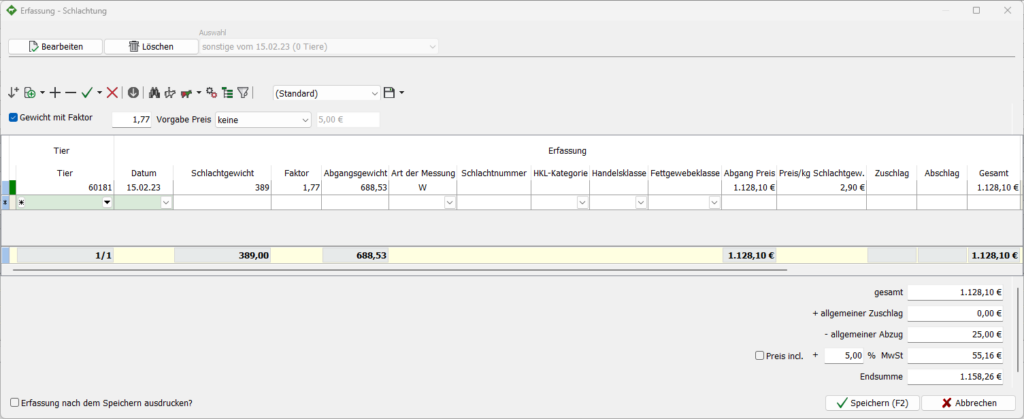
- Disposal Price
- Price/kg weight alive
- Price/kg Slaughter weight
- Surcharge/discount
- Adjust surcharges and, if necessary, VAT
- To stop the capture click Save
 | Add the animal again (inactive)
 | Add line
 | Delete line
| Confirm 
 | Cancel
  | only with active line that is not yet plausible
 | copy entry of all remaining animals
 | Search for animal
 | Info animal
 Utilization | Opens context menu capture
- Movement
- Fertility
- […]
- Technology
- Add to the work list
 | Settings | Opens context menu settings
- User-defined characteristics
- Create a new group
- Animal identifcation
- Edit print list
 | Set display | Columns can be added individually, sequence can be changed with drag’n’drop, then save, possibly under a separate (new) name
 | Filters | all animals are listed, if you remove the check mark in front of the animal, it is still displayed, by clicking on
  the filter becomes active, animals without check marks are hidden
 | Name of the current display (displayed columns and their order), as many ads can be saved as you like
 | Save display under current name / Save display as / Delete display